
The Xero chart of accounts is the list of categories that every sale, bill and bank transaction gets filed under, and it decides whether your profit and loss and balance sheet actually mean anything. Get it right and your reports tell you where money is made and lost. Get it wrong, and every report built on top of it is quietly misleading.
Here’s what to do first:
- Open it: go to Accounting → Chart of accounts from the main Xero menu.
- Add a simple account: click “Add account,” choose the account type, give it a unique code and name, then set a tax rate.
- Move a full list in one go: format your accounts into Xero’s CSV template and import them through the Conversion Toolbox rather than typing each one by hand.
- Pause and call an accountant: before any bulk reclassification, VAT group changes, or restructures ahead of investment or M&A.
Further down you’ll find a numbering cheat sheet with ready-to-copy codes and a step-by-step CSV import walkthrough, so bookmark this if you’re about to touch your chart for the first time.
Key Takeaways
A well-structured Xero chart of accounts depends on the five core account types, disciplined numbering, careful imports, and regular review as the business grows.
PointDetailsFive account types anchor everythingAssets, liabilities, equity, revenue and expenses feed directly into your balance sheet and profit and loss.Keep the chart leanMost SMEs need 20 to 50 accounts; Xero’s technical limit of 699 is far higher than practical use requires.Archive rather than deleteXero blocks deletion of accounts with transactions, so archiving preserves history without cluttering active use.Number with gapsLeave space between codes (1000, 1100, 1200) so new accounts slot in without a full renumbering exercise.Review at business milestonesNew products, markets, or funding rounds are the natural trigger points for a chart of accounts review.
Table of Contents
- What the Xero chart of accounts actually does
- How to open and view the chart of accounts in Xero
- Adding, editing, archiving and deleting accounts safely
- Bulk import and export using CSV and the Conversion Toolbox
- Using and customising Xero chart of accounts templates
- Numbering conventions and a cheat sheet of common codes
- Assigning tax rates, Watchlist and expense claims settings
- Fixing the common chart of accounts errors
- Structuring your chart of accounts for the long term
- Why most charts of accounts fail through neglect, not bad setup
- Frequently asked questions
- Sources
What the Xero chart of accounts actually does
Every transaction you record in Xero, a client invoice, a supplier bill, a bank transfer, has to land somewhere. The chart of accounts is that filing system. It sorts everything into five main account types: assets, liabilities, equity, revenue and expenses. Assets and liabilities (plus equity) build your balance sheet; revenue and expenses build your profit and loss. Nothing else feeds those reports. If an account is missing, mislabelled, or lumped in with the wrong type, the report built from it is wrong too.
A typical small business account list might include a current bank account and trade debtors under assets, a bounce-back loan or credit card balance under liabilities, share capital and retained earnings under equity, product sales and consulting income under revenue, and rent, salaries and software subscriptions under expenses. That’s the shape most SMEs need: a handful of accounts per category, not dozens.
The temptation with a blank chart of accounts is to build a category for everything you can think of. Xero itself caps organisations at 699 accounts before performance degrades, but in practice almost no small business needs more than a fraction of that.
Most SMEs run comfortably on between 20 and 50 accounts. Beyond that, you start splitting hairs that no one reads in a monthly report, and every extra account is another line a bookkeeper has to check during reconciliation. Fewer, well-named accounts almost always produce clearer numbers than dozens of granular ones nobody reviews.
How to open and view the chart of accounts in Xero
Finding the screen is simple, but knowing what you’re looking at once you’re there matters more.
- Log into Xero and go to the main navigation menu.
- Select Accounting, then Chart of accounts.
- You’ll land on a table listing every account currently set up in your organisation.
- Each row shows the account code, name, type, assigned tax rate, and a year-to-date (YTD) figure.
- Click any account name to open its edit screen and review or change its settings.
Revenue and expense accounts show a YTD balance because those reset each financial year. Balance sheet accounts, like your bank or trade debtors, show the balance as it stands today, since assets and liabilities carry forward rather than resetting. You’ll also notice a padlock icon next to certain rows. Those are system accounts Xero locks because it manages them automatically, and you generally shouldn’t try to edit or post directly to them.
Pro Tip: Bookmark the Chart of accounts URL directly in your browser once you’re on the page. It saves the two or three clicks through the menu every single time you need to check a code or tax rate mid-conversation with a client or supplier.
Adding, editing, archiving and deleting accounts safely
Adding a new account takes seconds, but a few rules stop it from causing problems later.
To add or edit an account, you need four things: Account type (which of the five categories it sits under), a unique Code, a Name, and a Tax rate. Optional extras include a description, adding the account to your Dashboard Watchlist, and enabling it for expense claims. None of the optional fields are required to save the account, but skipping the description is a false economy; six months later, nobody remembers why “Sundry Income 2” exists.
Not every account can be freely edited or removed. Xero marks some as system accounts, Retained Earnings is the classic example, and flags it as “Do not use” because Xero calculates that balance automatically. Post a manual journal there and you’ll create a mismatch that’s genuinely painful to unwind. Archiving hides an account from day-to-day use without destroying its history, which is why it’s almost always the right move over deletion. Xero won’t let you permanently delete an account that has transactions attached to it. Archive it instead, and it stays out of your dropdown lists while historic reports still reconcile correctly.
Before touching anything structural, run through a short checklist:
- Export your current chart of accounts as a backup.
- Note which reports (management accounts, VAT returns, investor packs) rely on the accounts you’re changing.
- Tell your bookkeeper or accountant before the change goes live, not after.
- Lock prior periods in Xero’s financial settings if you’re restructuring accounts that affect closed periods.
Deleting an account with historic transactions, or overwriting your chart through a careless bulk import, are two of the most common ways a chart of accounts gets damaged. Both are avoidable with a five-minute export first.
If you’re planning a material reclassification, restructuring the chart ahead of a funding round or acquisition, or adjusting anything tied to a VAT group registration, that’s the point to stop and bring in an accountant rather than push forward alone.
Bulk import and export using CSV and the Conversion Toolbox
Typing in fifty accounts one at a time is nobody’s idea of a good afternoon. When you’re migrating from another accounting system or restructuring a complex chart, Xero’s Conversion Toolbox handles the heavy lifting through a CSV upload instead.
- Export your existing chart of accounts (from your old system, or from Xero itself) as a starting file.
- Reformat that file to match Xero’s CSV template, keeping the required columns: Code, Name, Type, and Tax rate.
- Open the Conversion Toolbox in Xero and upload the formatted CSV.
- Review the preview screen carefully before confirming, since this is your last chance to catch errors before they go live.
The most common import failures are dull but disruptive: duplicate codes that Xero rejects outright, tax rate names that don’t match Xero’s exact labels, and blank required columns that stop the whole file from processing. Fix these in the CSV itself before re-uploading rather than trying to patch individual accounts afterwards.
A few habits make imports far less stressful:
- Test the import in a demo or trial organisation first if you’ve never used the Conversion Toolbox before.
- When migrating historic data, enter conversion balances as at a clean cutoff date, such as your last financial year end, rather than importing every historic transaction.
- Lock the prior period in Xero once your conversion balances are confirmed, so nothing gets posted behind the cutoff by accident.
Using and customising Xero chart of accounts templates
You don’t have to build a chart from nothing. Xero Partner Hub and Xero HQ both offer pre-built chart of accounts templates that accountants and bookkeepers can apply to client organisations, and they’re a genuinely useful starting point for a new company. Some templates are restricted to partner-managed setups rather than being available to every new organisation directly, so if you can’t see one in your own account, that’s usually why.
Applying a template doesn’t mean the job’s done. Once it’s loaded, go through it line by line: check that codes follow a numbering pattern you actually understand, confirm tax rates match your VAT registration status, and rename anything generic that doesn’t reflect how your business actually earns or spends money. A template built for a retail business will have accounts that mean nothing to a software consultancy, and vice versa.
Templates save time on the mechanical part of setup, but they were never built for your specific business. Treat every one as a first draft, not a finished chart.
Pro Tip: If you’re an accountant deploying the same template across multiple client organisations, keep one master version you control and update centrally. Applying an outdated template to a new client because you forgot to sync changes is a surprisingly common and entirely avoidable mistake.
Keep numbering consistent across every account you add or rename, and resist the urge to create two accounts that mean almost the same thing. “Office Supplies” and “General Office Costs” sitting side by side is exactly the kind of duplication that confuses reports six months down the line.
Numbering conventions and a cheat sheet of common codes
Most businesses use either a 3-digit or a 4/5-digit numbering system, and the logic behind both is identical: group similar account types together by their leading digit. A common 4-digit convention puts asset accounts in the 1000s, liabilities in the 2000s, equity in the 3000s, revenue in the 4000s, and expenses in the 5000s. Anyone glancing at a code instantly knows what kind of account they’re looking at without opening it.
CodeAccount nameTypeTypical use1000Business bank accountAssetDay-to-day current account1100Trade debtorsAssetUnpaid customer invoices2000Trade creditorsLiabilityUnpaid supplier bills—VAT liabilityLiabilityAmounts owed to HMRC3000Share capitalEquityOwner or shareholder investment4000Sales revenueRevenueCore product or service income5000Cost of goods soldExpenseDirect costs of delivering the service—Rent and ratesExpenseOffice or premises costs—Salaries and wagesExpensePayroll costs
Leave gaps between codes deliberately, 1000, 1100, 1200, rather than numbering sequentially as 1, 2, 3. When you inevitably need to add “Trade debtors, overseas” next year, you’ll have a natural home for it at 1150 instead of renumbering half your chart. Name each account plainly enough that a non-accountant reading a report understands it without needing a description tooltip; “Software Subscriptions” beats “Sundry IT” every time.
Assigning tax rates, Watchlist and expense claims settings
The tax rate you attach to an account isn’t a formality. It determines how every transaction posted there gets treated on your VAT return, so a mismatched rate on a frequently used account can distort your VAT position quietly over months before anyone spots it.
Set the tax rate when you first add the account, and revisit it whenever your VAT registration status changes. If your turnover is approaching the VAT threshold, check current registration rules directly with HMRC before making bulk changes to how accounts are taxed, since getting this wrong retroactively is far more painful to fix than getting it right up front.
A tax rate sitting quietly on the wrong setting for a year doesn’t announce itself. It just shows up as a discrepancy on a VAT return that someone eventually has to explain.
Two other settings are worth using deliberately rather than leaving on defaults. Adding key accounts, your main bank balance, a large loan, overdue debtors, to the Dashboard Watchlist puts the numbers you check most often front and centre every time you log in. Enabling an account for expense claims means staff submitting receipts can code them directly without you reclassifying everything afterwards.
Pro Tip: Before rolling out a tax rate change across multiple accounts, run a draft VAT report first. It takes two minutes and catches misclassifications while they’re still theoretical, not after they’ve been filed.
Fixing the common chart of accounts errors
A handful of problems account for most of the support tickets and confused phone calls around charts of accounts. Here’s how to work through them in order.
- Duplicate or near-duplicate accounts. Search the chart for similarly named accounts, decide which one to keep, and reassign transactions from the duplicate before archiving it.
- Wrong tax rates applied historically. Correct the rate going forward first, then work with your bookkeeper on any backdated adjustments needed for affected VAT periods.
- Locked accounts you can’t touch. If an account has transactions or is a Xero system account, archive rather than delete, and create a new account if you genuinely need a fresh category.
- A messy import overwrote existing structure. Use your pre-import export to identify what changed, then manually restore or recreate any accounts that were lost.
- Reconciling after a structural change. If numbers don’t tie out immediately after restructuring, post the difference to a temporary suspense account rather than guessing, then investigate before closing the period.
After any chart change, run three checks before you consider it done: confirm your trial balance still balances, scan the profit and loss for anything that looks obviously wrong, and check your bank reconciliation hasn’t shifted. Xero’s own support team can help with technical import errors and locked-account questions; anything involving how a reclassification affects your tax position belongs with your accountant.
Structuring your chart of accounts for the long term
A chart of accounts isn’t a one-off setup task. It’s a piece of financial infrastructure that should evolve as deliberately as the business does, and it’s worth treating it that way from year one.
A few rules of thumb hold up well in practice: keep every account name meaningful enough that someone outside finance understands it, resist adding accounts “just in case,” and check that the chart actually supports the reports you need for management meetings and tax filings, not just the minimum HMRC requires. Granular, well-designed subaccounts let founders see performance by product line, region, or department, which matters enormously once investors start asking pointed questions about unit economics.
Certain moments should always trigger a chart review rather than an ad hoc tweak: launching a new product line, expanding into a new jurisdiction, changing an accounting policy, or preparing management information for an investor round. Each of these tends to demand new revenue or cost categories that the original chart never anticipated.
Two governance habits pay for themselves quickly. Keep a short change log noting when and why each account was added, edited or archived, so the reasoning doesn’t live only in one person’s memory. And lock prior periods in Xero once accounts are finalised for that year, so no one can post backdated entries into a structure that’s since changed. Getting comfortable with these routines is a natural extension of broader financial reporting best practices for UK SMEs, and for fast-growing companies specifically, it’s worth pairing with a wider look at bookkeeping best practices for UK tech startups.
If your chart hasn’t been reviewed since the day it was set up, or you’re heading into a funding round, a restructure, or a change in VAT status, that’s exactly the point at which a second pair of professional eyes catches problems before they become expensive. Price & Accountants’ bookkeeping services work through exactly this kind of review for growing tech and fintech businesses, and where the changes touch broader financial structure or investor reporting, our advisory and tax planning team can help make sure the chart supports where the business is heading, not just where it’s been. It’s also worth getting familiar with core terms like the accounting period your reports run against, since chart changes timed against the wrong cutoff cause more confusion than the change itself.

Why most charts of accounts fail through neglect, not bad setup
Most guidance on this subject focuses entirely on the initial build, get the five account types right, pick sensible codes, apply a template, and move on. That’s necessary but nowhere near sufficient. The charts that cause real problems for growing businesses are rarely badly designed at the start. They’re charts that were reasonable in year one and never touched again while the business changed underneath them.
The conventional advice to “keep it simple” is right, but it’s usually delivered without the follow-up that matters more: simple only works if someone revisits the structure when the business outgrows it. A ten-account chart that made sense for a two-person consultancy becomes actively misleading once that company has three revenue streams, a second office, and investors asking for segmented reporting. Nobody flags this moment, because nothing breaks. The reports just quietly stop being useful.
If there’s one priority worth acting on immediately, it’s this: treat every major business milestone, a new product, a new market, a funding round, as a trigger to open the chart of accounts and ask whether it still reflects reality. That single habit, done consistently, prevents more reporting confusion than any amount of upfront numbering discipline ever will.
Frequently asked questions
What is the Xero chart of accounts used for?It categorises every transaction in Xero, sales, bills, bank movements, into the account types that build your profit and loss and balance sheet, so accurate categorisation directly determines accurate reporting.
How many accounts should a small business have in Xero?Most small businesses manage comfortably with between 20 and 50 accounts. Xero’s technical ceiling sits far higher, but adding accounts beyond what your reports actually use tends to create clutter rather than clarity.
Can I import my whole chart of accounts into Xero at once?Yes, via a CSV file uploaded through the Conversion Toolbox, which is the standard route for migrations or large restructures rather than manual entry.
What happens if I try to delete an account that has transactions?Xero won’t allow it. Archive the account instead, which removes it from active dropdowns while preserving the historic transactions and reports tied to it.
Do chart of accounts templates work for every business?They’re a useful starting point, but every template needs reviewing for tax rates, account names, and relevance to your specific business before it goes live, since a generic template rarely fits without adjustment.
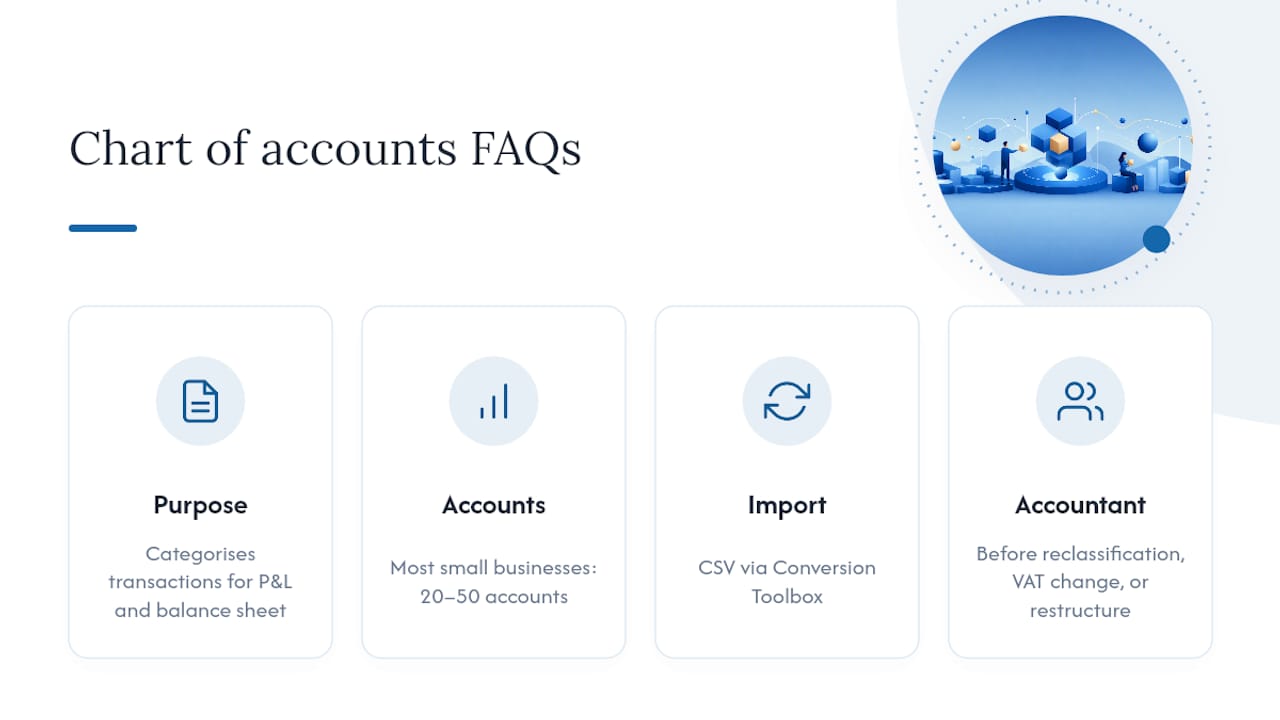
When should I bring in an accountant for chart of accounts changes?Bring one in before any material reclassification, VAT group change, or restructure tied to funding or acquisition activity, since these changes can affect tax filings and investor reporting if handled incorrectly. This article provides general guidance; always confirm current VAT and reporting rules with HMRC or a qualified accountant for your specific situation.
Sources
Recommended
- Xero payroll setup: a practical UK guide - Price & Accountants
- The Ultimate Guide to Tech Startup Bookkeeping: Everything You Need to Succeed with Xero in 2026 - Price & Accountants
- Xero tracking categories: guide for UK small businesses - Price & Accountants
- How Xero transforms UK small business accounting - Price & Accountants